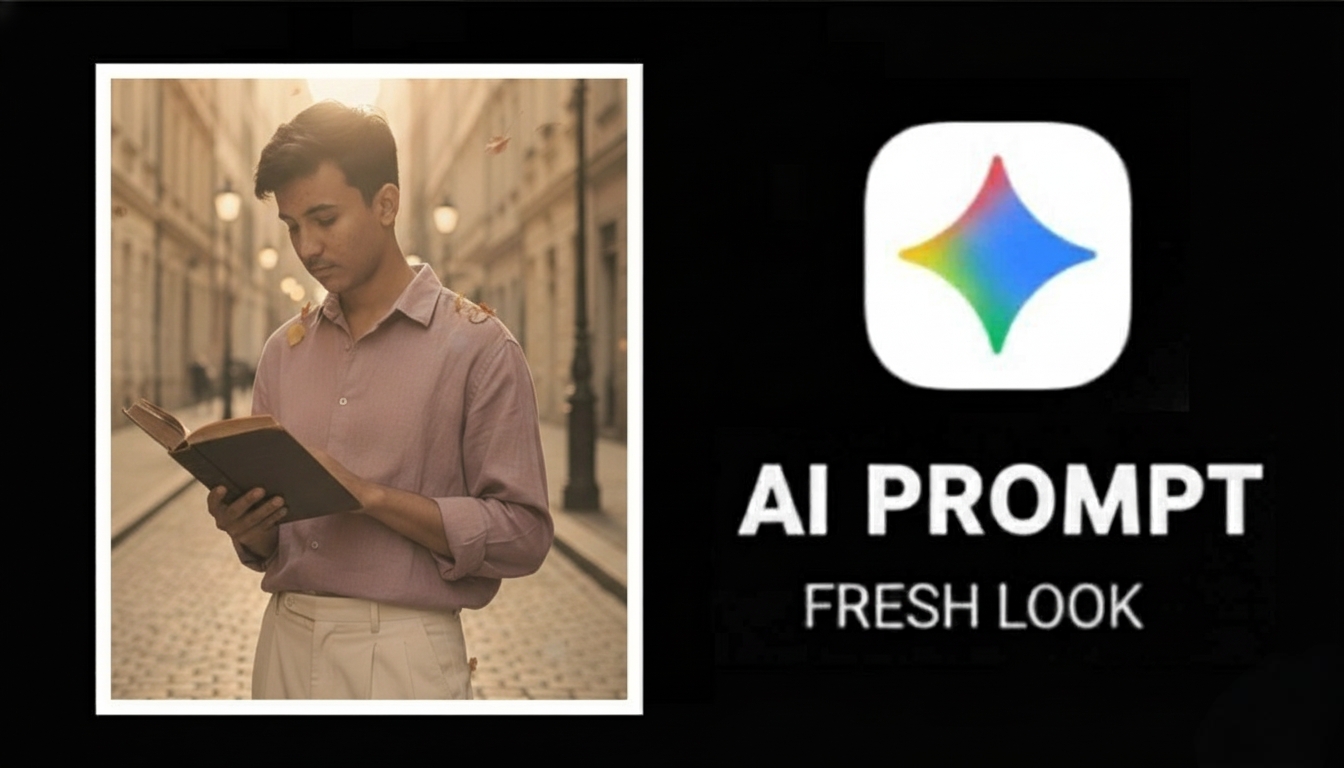
Hey there! Welcome back to Edit Pro Tips AI. We’re diving deep into the world of artificial intelligence to show you an incredible trick that will elevate your personal branding and social media content. Today, we’re revealing the exact process I used to generate a breathtaking, dramatic portrait complete with striking lightning effects using Gemini AI. This isn’t complex, it’s efficient—you can replicate this professional-grade result with your own photo in under 5 minutes!
The Power of AI in Visual Creation
The days of needing an expensive studio setup, complex lighting equipment, and hours of Photoshop expertise are over. AI tools like Gemini have democratized professional visual content creation. The portrait you saw—with its deep, moody atmosphere, cinematic color grading, and those powerful orange-red lightning bolts—was entirely generated by a sophisticated AI model. This not only saves time but also allows for boundless creative experimentation.
Essential Prerequisites for Your AI Masterpiece
#Google Gemini Account: You need a free account, accessible at gemini.google.com. If you have a standard Google account, you’re already set up!
#A Clear Reference Photo: This is the most critical element. Your photo should be well-lit, clear, and preferably front-facing to give the AI the best data for maintaining your realistic facial features.
#5 Minutes of Uninterrupted Time: The process is quick, but focus ensures the best prompt execution.

Step-by-Step AI Portrait Master AI Portrait Generation: Lightning Effects with Gemini Generation Process
Follow these five simple, yet critical, steps to create your dramatic portrait:
Step 1: Preparing and Optimize your Reference Photo
Begin with a high-quality photo — a clear, well-lit, front-facing shot works best. Although Gemini excels at applying styles, providing a sharp and natural reference image of your face helps it preserve your true likeness. Avoid using blurry, dark, or heavily filtered photos for the best results.
Step 2: Accessing the Gemini Platform
Navigate directly to the Gemini website and sign in using your existing Google credentials. The interface is intuitive, designed for quick access to the image generation tools.
Step 3: Uploading the Reference Image
Look for the image upload button—it usually looks like a small mountain or photograph icon. Click it and select the clear photo of yourself you prepared in Step 1. This action tells the AI, “Base the subject’s face on this specific image.”
Step 4: The Art of Prompt Engineering – The Lightning Master Prompt
The prompt is your director’s script. Copy and paste the following detailed, exact prompt to guarantee the striking lightning and cinematic aesthetic. Every word here is intentional:
Dark cinematic portrait with dramatic lighting. Subject sitting confidently wearing a black hoodie against a dark atmospheric background. Add striking orange-red lightning bolt effects emanating from behind the subject on both sides. Moody studio lighting with subtle warm glow. Dark and powerful aesthetic with professional color grading. Use reference photo from uploaded image for face and skin tone. Maintain realistic facial features and expression. 4K quality, 9:16 vertical ratio, cinematic composition, shallow depth of field.
Step 5: Generate and Curate
Hit the ‘Generate’ button (or equivalent) and give the AI model 30-60 seconds. Gemini will process your request and produce several variations. Carefully examine each one. Choose the portrait that best captures your likeness, the intensity of the lightning, and the overall moody atmosphere. You might need to try the prompt a few times to find the absolute perfect output.
Conclusion
With Gemini AI Photo Prompt Editing, anyone can create professional visuals without technical skills. It saves time, enhances creativity, and brings your imagination to life with precision. Whether for Instagram, blogs, or art projects — Gemini AI turns simple words into beautiful, story-like photographs.